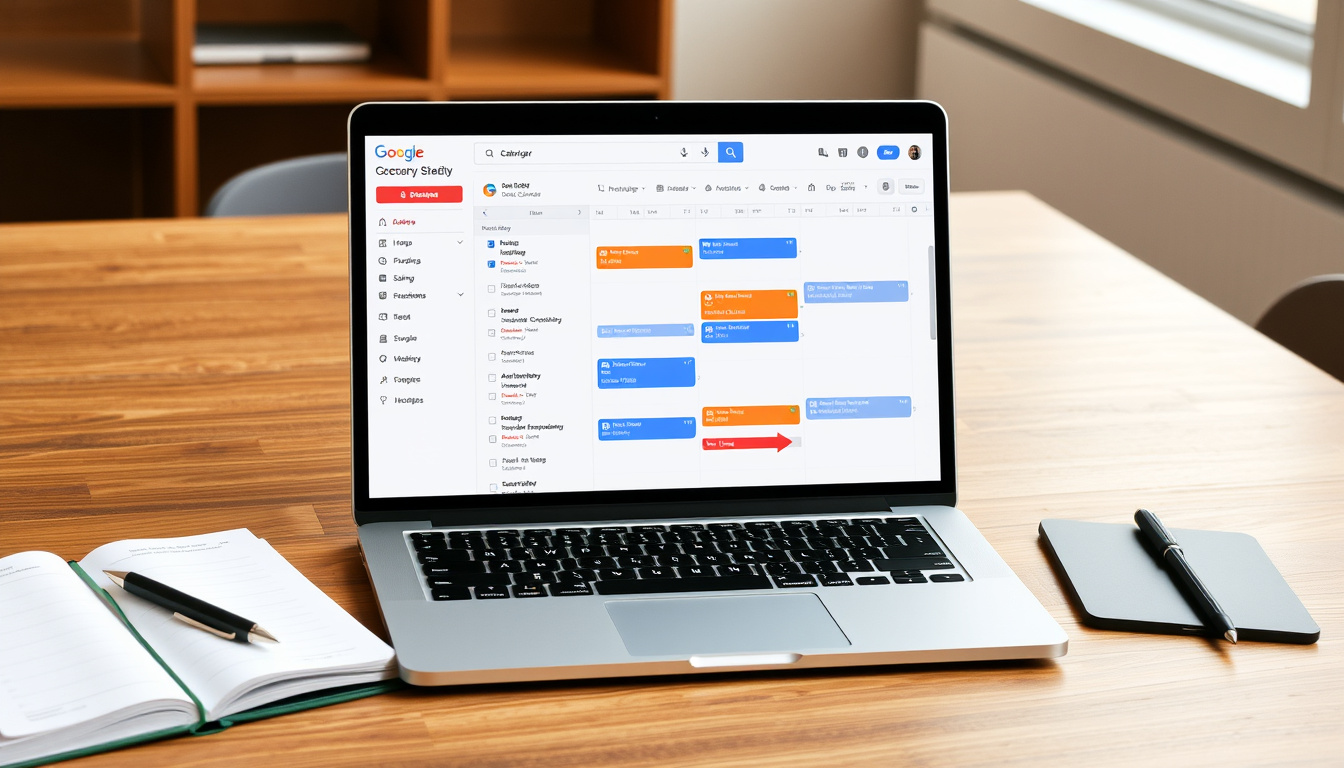

You’ve probably opened Google Calendar to check your schedule and noticed the little “Tasks” panel hiding on the right. That unassuming to-do list is more useful than it first appears — and it’s been quietly syncing across your devices since 2018. This guide walks you through exactly how to use Google Calendar tasks, where they differ from events, and why combining the two can replace scattered sticky notes and separate apps.
Google Calendar monthly active users: 1 billion+ · Google Tasks integration launched: 2018 · Maximum tasks per list: 100,000
Quick snapshot
- Tasks sync across all devices with the same Google account (Google Calendar Help)
- Whether Google Tasks will receive major feature updates in the future (Zapier (productivity guide))
- Whether dated tasks always appear on the calendar grid as expected (Tech Tip Thursday (YouTube productivity channel))
- Whether tasks can be reordered reliably across all devices (Google Tasks Beginner’s Guide (YouTube))
- Google Tasks launched in 2018 as a standalone app and integrated into Calendar (Zapier)
- Google may deepen integration with Workspace apps like Gmail and Docs (Zapier)
Four facts that define Google Tasks at a glance:
| Label | Value |
|---|---|
| Developer | |
| Initial release | 2018 |
| Operating systems | Web, Android, iOS |
| License | Free with Google account |
How to use Google Calendar and tasks effectively?
Getting started is simple: the Tasks panel lives right inside Calendar. Here’s how to make it work for you.
Adding tasks from the calendar interface
- Open Google Calendar on your desktop and click the Tasks icon in the right-hand sidebar to open the panel (Zapier (productivity guide)).
- Click Add a task, type a title, and optionally add details, a due date, and a reminder (Google Calendar Help).
- To create a dated task, drag from the panel directly onto a time slot on the calendar grid (Tech Tip Thursday (YouTube)).
Setting due dates and reminders
Each task can have a due date and optional time. When you assign a date, the task automatically appears as a strip at the top of that day on the calendar (Google Tasks Beginner’s Guide (YouTube)). You can also set reminders — though unlike Calendar events, tasks don’t send pop‑up alerts unless you enable them in the Tasks settings.
Viewing tasks on your calendar
Dated tasks show as a narrow bar above the day’s time slots, not as full blocks. Undated tasks stay in the sidebar and never appear on the grid. To see everything, open the Google Tasks app or the panel (TailorJoy (student productivity blog)).
The implication: Dated tasks bridge the gap between freeform to-dos and scheduled events, but require consistent sidebar checks to avoid forgotten items.
How do I put Google Tasks on Google Calendar?
If the Tasks panel isn’t visible, you may need to enable it first. The process differs slightly between desktop and mobile.
Enabling Google Tasks in the sidebar
- On the web version of Google Calendar, look for the column of icons on the far right. Click the Tasks icon (a circle with a checkmark) to open the panel (Google Tasks Beginner’s Guide (YouTube)).
- If you don’t see the icon, go to the main settings (gear icon) → View options → enable Show tasks.
Using the Google Tasks mobile app
On Android, open the Google Calendar app, tap the hamburger menu in the top‑left corner, and select Tasks (Zapier (productivity guide)). On iOS, you can install the separate Google Tasks app from the App Store, and it syncs automatically with Calendar.
The implication: Both methods pull from the same data, so a task added on your phone appears on your desktop within seconds.
What’s the difference between Google Tasks and Google Calendar?
This is where most confusion lives. Let’s break it down.
Functionality: tasks vs events
- Google Tasks is a lightweight to-do list. It handles items you need to do but don’t require a fixed time slot (TailorJoy).
- Google Calendar events have a fixed start and end time. They block out time on the grid and can include descriptions, links, and attachments (Google Calendar Help).
- Tasks can include subtasks, details, and repeating schedules. Events can repeat too, but they occupy a specific time slot each time.
User interface differences
Events are front and center on the calendar grid — you see them immediately. Tasks live in the sidebar by default, only appearing as small strips on the calendar when they have a due date. They are also managed in the separate Google Tasks app (Tech Tip Thursday (YouTube)).
Events command your time; tasks merely remind you of it. For scheduled meetings, use events. For flexible to-dos, use tasks — they won’t clutter your time slots.
Upsides
- Free with a Google account
- Seamless sync across devices
- Subtasks for project breakdown
- Drag-and-drop reordering
- Integration with Gmail and Docs (Zapier)
Downsides
- No collaboration or sharing
- Weak reminders compared to events
- No built-in board/calendar view (like Asana)
- Undated tasks can be easily forgotten
- Limited filtering options
The pattern: Google Tasks trades collaboration and advanced views for simplicity and zero cost integration with Calendar.
Where do Google Calendar tasks go?
Understanding where tasks appear helps avoid losing track of them.
Location of tasks in the web interface
All your tasks — dated or not — appear in the Tasks sidebar panel. You can switch between different task lists using the dropdown at the top of the panel (Zapier (productivity guide)).
Tasks with dates on the calendar grid
When a task has a due date, it appears as a thin strip at the very top of that day on the calendar. It doesn’t block any time — it’s more like a banner. If you assign a specific time, it aligns to that hour slot but still remains a small strip (Tech Tip Thursday (YouTube)).
The catch: Undated tasks never show on the grid. You must remember to open the sidebar or the Tasks app to see them. If you never check the panel, you may miss them entirely.
Should I use events or tasks in Google Calendar?
The answer depends on your workflow. Here’s a simple decision framework.
When to use an event
- For meetings, appointments, classes, or anything that requires a fixed start and end time (TailorJoy).
- When you need to invite others or share a location.
- For recurring blocks where you need to guard your time (e.g., “Deep work 9-11 AM”).
When to use a task
- For to-do items without a precise time: “Buy groceries,” “Review quarterly report,” “Call dentist.”
- When the deadline is a date, not a time slot (Zapier).
- For multi-step projects, where subtasks help break down work.
When to use no-date tasks
No-date tasks stay in your list until you mark them done. Use them for “someday” items, ideas, or chores that have no urgency. They act as a parking lot for things that don’t yet need a calendar commitment (TailorJoy).
Treating every to-do as a calendar event frays your schedule. Treating every meeting as a task erases your timeline. The magic lies in knowing which container fits.
What this means: The decision between event and task shapes how time is perceived – events block time, tasks merely flag it.
Before we compare them directly, a quick look at how tasks and events stack up:
| Feature | Google Tasks | Calendar Events |
|---|---|---|
| Purpose | To-do lists | Time-blocked activities |
| Start/end time | Optional date/time | Required |
| Appears on grid | Only if dated | Always |
| Subtasks | Yes | No |
| Invite others | No | Yes |
| Color coding | By task list only | Per event |
| Reminders | Email/push notifications | Pop-up + email + push |
Step-by-step: How to master Google Calendar tasks
Follow this process to turn the feature into your daily command center.
- Open the Tasks panel in Google Calendar (desktop) or the Tasks app (mobile).
- Create a new task list for each area of your life (Work, Personal, Home).
- Add tasks with due dates for deadlines and time-sensitive items.
- Use subtasks for multi-step projects — e.g., “Plan vacation” with subtasks “Book flight,” “Reserve hotel” (Google Tasks Beginner’s Guide (YouTube)).
- Set recurring tasks for weekly chores like “Laundry” or “Team stand-up notes” (Zapier).
- Turn emails into tasks from Gmail using the keyboard shortcut
Shift + T(Zapier). - Review your task list each morning — check the sidebar before planning your day.
The takeaway: For individuals, this workflow eliminates the need for additional to-do apps by leveraging existing Google infrastructure.
What others say about Google Tasks
Users across platforms share a common sentiment: simplicity wins.
“I use Google Tasks as my personal project management system. It’s not fancy, but it’s always there, and it syncs instantly.”
— Reddit user, r/GoogleTasks (r/GoogleTasks community)
“I switched from Todoist to Google Tasks because it lives inside my calendar. I don’t need another tab open.”
— Comment from Zapier article reader (Zapier reader responses)
For anyone who already uses Google Calendar daily, the conclusion is straightforward: Tasks fills a real gap. You get a syncable to‑do list at zero cost, with enough structure to handle most personal workflows. The price for simplicity is limited collaboration and no advanced views. But if your goal is to stop switching apps and start checking things off, this is the tool to try.
Related reading: Tips for using Google Tasks and Google Calendar as a student agenda · Google Tasks guide
Frequently asked questions
Can I share Google Tasks with others?
No, Google Tasks does not support sharing or collaboration. Each task list is private to your account.
How do I delete a task?
Open the task in the panel or app, click the three‑dot menu, and select Delete. Deleted tasks cannot be recovered.
How do I reorder tasks?
Simply drag and drop a task in the list to reorder it. This works on desktop and in the mobile app (Google Tasks Beginner’s Guide (YouTube)).
Can I add subtasks in Google Tasks?
Yes, open a task and click Add subtask. You can nest subtasks one level deep.
How do I set a recurring task in Google Calendar?
When creating or editing a task, click Repeat and choose a pattern (daily, weekly, etc.). This works in both the panel and the app (Zapier (productivity guide)).
Why are my Google Tasks not syncing?
Check your internet connection and ensure you’re signed into the same Google account on all devices. Force sync by pulling down on the mobile app or refreshing the web page (Google Calendar Help).
Can I export Google Tasks to another app?
No native export exists. However, you can use tools like IFTTT or Zapier to push tasks to other services.
Related stories




Kevin Sullivan covers community events, neighbourhoods and local culture from coast to coast.