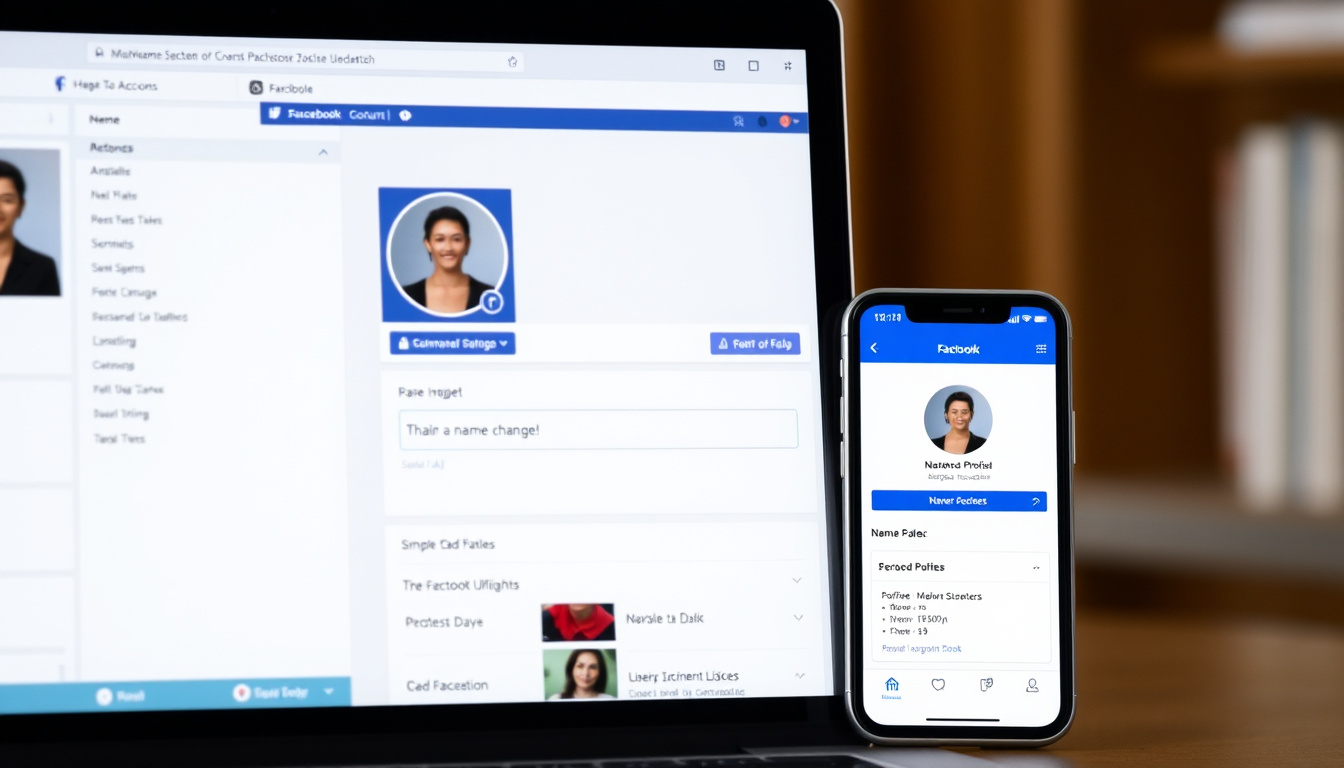

Whether you’re dealing with a new last name after getting married, correcting a typo that’s haunted you for years, or just finally going by the nickname you’ve always preferred, Facebook lets you make that change — but the process isn’t exactly obvious. The platform routes name changes through a centralized hub called Accounts Center, and the exact path has shifted since a 2025 layout update. Here’s how to navigate it on desktop, iPhone, and Android, plus what to do when the option seems to have vanished.
Official Path: Settings & Privacy → Settings → Accounts Center → Profiles → Name · Mobile Access: Scroll down and tap Settings & privacy, then tap Settings · Primary Source: Facebook Help
Quick snapshot
- Name changes limited to once every 60 days (Business Insider)
- All changes route through Accounts Center since 2025 update (Business Insider)
- Nicknames allowed under Facebook’s community standards (Business Insider)
- Whether Facebook has updated name-review criteria in 2026
- Specific appeal steps if a name is rejected
- 2025: Facebook updated its layout, making older walkthroughs obsolete
- 2026: Tutorial creators report Accounts Center path is now standard
- If you see the Name option, submit and wait for review before save
- If the option is missing, the 60-day clock is still running
This reference table maps every menu path and entry point mentioned in the guide below.
| Field | Value |
|---|---|
| Core Navigation | Accounts Center > Profiles > Name |
| Mobile Entry | Settings & privacy > Settings |
| Support Form | Facebook Name Change Request |
| Desktop Entry Point | Down arrow top-right |
| Mobile Menu Icon | Bottom-right (iPhone) · Top-right (Android) |
| Nickname Path | Accounts Center > Name > Manage other names |
How do I change my Facebook name profile?
Facebook consolidates profile management under Accounts Center, a hub that handles settings across Facebook and Instagram. The steps vary slightly between desktop and mobile, but both paths funnel through the same destination. According to Business Insider (a reference publication covering platform how-tos), the process is straightforward once you know where to click.
Via web browser
- Log into Facebook on a desktop browser and locate the down arrow in the top-right corner.
- Click the arrow and select Settings & Privacy, then Settings.
- Look for See more in Accounts Center and tap it.
- Select your profile, then tap Name to enter your desired display name.
- Facebook displays a review prompt before saving — take a moment to check your spelling.
- Confirm, and your new name appears after refreshing the page.
Facebook requires review before saving any name change. Rushing through this step can be costly: once confirmed, you cannot edit again for 60 days.
Using mobile app
- Open the Facebook app and find the menu icon: bottom-right on iPhone, top-right on Android.
- Tap Settings & Privacy, then Settings.
- Scroll to Accounts Center and tap Profiles.
- Select your Facebook profile and tap Name.
- Enter your new name, review the prompt, and confirm.
- Refresh your profile to see the updated name.
The process is identical on iOS and Android once you reach the Accounts Center, with the only difference being where the menu icon sits on screen. Business Insider confirms this parity between platforms.
Facebook prefers real names used in everyday life. Symbols, numbers, unusual capitalization, repeating characters, punctuation, titles, or words functioning as names are all prohibited.
The Accounts Center requirement means no sidebar shortcut or profile-level edit bypasses the 60-day lockout once your change is confirmed.
Why can’t I edit my name in Facebook?
If the Name option doesn’t appear in your Accounts Center, the most likely culprit is the 60-day restriction Facebook enforces on name changes. Tutorial creators documenting the 2026 process note that when the name field is absent from Personal Details, it typically signals the waiting period is still active.
Common restrictions
- 60-day limit: You can only change your name once every 60 days. If the Name option is missing, you’re still within that window.
- Policy violations: Names containing offensive content, characters from multiple languages, or phrases instead of personal names will be rejected during review.
- Layout changes: Tutorials written before 2025 may describe menus that no longer exist.
Solutions
- Check the Accounts Center > Personal Details path — if Name isn’t listed, wait until the 60-day period expires.
- If you believe your name change wasn’t processed, submit a request through the official Facebook name change support form.
- Avoid repeated submissions during the waiting period, as tutorial creators warn this can complicate your case.
- For legitimate life changes (marriage, divorce, name correction), Facebook’s review team may make exceptions — but there’s no guaranteed workaround for the 60-day rule.
No third-party tool can skip the 60-day limit. If the Name option is grayed out or missing, patience is your only path forward — repeated attempts only add friction.
The pattern across all platforms is consistent: Facebook hides the Name field entirely when the lockout is active, so seeing it return is the only reliable signal that the window has reopened.
How to change name in Facebook in mobile
Mobile users have two entry points into the name change flow, both converging at Accounts Center. The experience is nearly identical whether you’re running iOS or Android, with the menu icon position being the only consistent difference.
On iPhone
- Tap the hamburger menu in the bottom-right corner.
- Select Settings & Privacy, then Settings.
- Navigate to Accounts Center > Profiles > your Facebook profile.
- Tap Name, enter your new name, and confirm after review.
On Android
- Tap the menu icon in the top-right corner.
- Select Settings & Privacy, then Settings.
- Navigate to Accounts Center > Profiles > your Facebook profile.
- Tap Name, enter your new name, and confirm after review.
After saving, refresh your profile page to see the updated name reflected across comments, posts, and friend lists.
How to change your name on Facebook on computer
Desktop users access the same Accounts Center hub but arrive via the top-right down arrow instead of a mobile menu. The interface presents the same review step before saving, so desktop doesn’t offer any shortcuts around the 60-day limit.
- Log into Facebook at facebook.com and click the down arrow in the top-right corner.
- Choose Settings & Privacy > Settings.
- Click See more in Accounts Center near the top of the page.
- Select Profile under your account, then Name.
- Type your desired name, review it carefully, and click Review.
- Confirm the change — your new name propagates after reloading the page.
How do you change your name on Facebook after getting married?
Life events like marriage are common reasons for name changes, and Facebook accommodates this through its standard name change flow — plus an optional nickname feature for maiden or former names. The process doesn’t require special documentation, but your new name must still comply with Facebook’s community standards.
Last name update
- Navigate to Accounts Center > Profiles > your Facebook profile.
- Tap Name and enter your new full name as you want it displayed.
- After review and confirmation, your married name becomes your primary display name.
- If you want to preserve your maiden name on Facebook as an alternate, use the Manage other names feature: Accounts Center > Name > Manage other names > Select type (e.g., maiden name) > Enter > Save.
Business Insider’s reference guide notes that Facebook allows multiple name types — nicknames, maiden names, married names, and alternate spellings — as long as each complies with community standards and isn’t used to misrepresent identity.
Adding a maiden name as an alternate doesn’t satisfy employers or organizations that require your current legal name on Facebook. For those contexts, you need the primary name updated — and that means the 60-day clock starts fresh.
The implication is that users who need the married name to appear for professional contacts must accept the 60-day constraint on future changes.
Upsides
- Accounts Center provides a unified path across all Meta platforms
- Nicknames and alternate names can be added without triggering the 60-day limit
- Mobile and desktop processes are nearly identical
- Life event name changes handled through normal flow
Downsides
- 60-day restriction is strictly enforced with no official bypass
- 2015-era tutorials are obsolete; finding current guidance takes effort
- Name review step adds friction — typos can’t be fixed immediately
- Rejections aren’t fully documented; appeal process is unclear
Related reading: How to Get Rid of a Stye Overnight · How to Cook Quinoa
While navigating Facebook’s settings, readers often cross-reference this desktop and mobile guide for confirming steps across devices and common fixes.
Frequently asked questions
Can I change my name on Facebook without creating a new profile?
Yes. The name change feature exists within your existing profile settings — you don’t need to create a new account. Navigate to Accounts Center > Profiles > Name to edit your current profile without starting over.
Why does Facebook make it so hard to change your name?
Facebook’s name policy stems from its real-name culture, designed to reduce impersonation and fraud. The 60-day limit discourages frequent name-swapping, and the review step ensures proposed names meet community standards. Critics argue it creates hurdles for legitimately changing names, but the policy remains in place.
How can I change my account name?
Go to Settings & Privacy > Settings > Accounts Center > Profiles > your profile > Name. Enter your desired name, pass the review step, and confirm. You’ll need to wait 60 days from your last change before the option becomes available again.
How to change your name on Facebook professional mode?
Professional Mode uses the same Accounts Center path as personal profiles. Navigate to Accounts Center > Profiles > your professional profile > Name. The same 60-day limit and review requirements apply. Note that Professional Mode displays your name differently in certain contexts, so check how it appears before assuming the change is complete.
How to change your name on Facebook Lite?
Facebook Lite routes through the same Accounts Center. Open the app, find the menu, tap Settings & Privacy > Settings > Accounts Center > Profiles > your profile > Name. The interface may differ slightly from the main app, but the underlying path is identical.
How to change name in Facebook Meta?
Facebook and Meta share the same account infrastructure. Use Accounts Center from either platform: Settings & Privacy > Settings > Accounts Center > Profiles > Name. Changes apply across Facebook, Instagram, and other connected Meta services.
Why can’t I edit my name in Facebook?
The most common reason is the 60-day waiting period. If the Name option doesn’t appear in Accounts Center > Personal Details, your account is still locked from a recent change. Other causes include policy violations (the name contains prohibited characters or content) or, more rarely, a temporary technical issue. Check the official support form if neither applies.
What people say
You can only change your Facebook name once every 60 days.
— Business Insider (Reference How-To Publication)
If you do not see the name option inside personal details, that usually means your account is still under the 60-day waiting period.
— YouTube Tutorial Creator (How To Change Facebook Name Without Waiting 60 Days, 2026)
Keep in mind that when you make a change to your name, you won’t be able to change it again for another 60 days.
— YouTube Tutorial Creator (How to Change Your Name on Facebook, 2026)
This tutorial has been updated to 2025. The old method doesn’t work anymore since Facebook changed their layout a bit.
— YouTube Tutorial Creator (How to Change Facebook Name Mobile and PC, 2025)
Facebook’s name change system isn’t deliberately opaque — it’s just buried under menu layers that have shifted multiple times since 2025. For users who need to update their display name for a life event or personal preference, the Accounts Center path works reliably across desktop and mobile. The 60-day lockout remains the biggest practical constraint, and there’s no workaround that doesn’t involve waiting it out. If your situation requires a faster resolution — a legal name change, for instance — Facebook’s support form is your best bet, though response times aren’t guaranteed.
Related stories





Jessica Morin covers provincial policy, regional economics and public affairs across Canada.